How to Train a Chatbot on Your Website (2026 Guide)
Learn exactly how to train a chatbot on your website content — from data prep to deployment. Real pricing, honest comparisons, and a step-by-step process.
The most useful AI chatbot you can add to your site isn't a generic assistant. It's one that knows your pricing, your FAQ, your return policy, and your product catalog by heart. Training a chatbot on your website today is a weekend project, not a six-month engineering effort. This guide covers exactly how it works, what competitors don't tell you, and how to avoid the mistakes that lead to chatbots that hallucinate or go stale after launch.
What "Training" Actually Means (The Misconception That Wastes Your Time)
When most people hear "train a chatbot on your website," they picture weeks of machine learning, GPU clusters, and a data science team. That's fine-tuning a base model, and it's almost certainly not what you need.
What you actually want is Retrieval-Augmented Generation (RAG). Here's the plain-English version:
- Your website content is chunked into small passages and converted into numerical vectors (embeddings)
- Those vectors are stored in a vector database (a knowledge base)
- When a user asks a question, the system searches the vector database for the most relevant chunks
- A language model (like GPT-4.1-mini or GPT-4o) reads those chunks and generates a grounded answer
The model itself doesn't change. No training happens in the traditional sense. What changes is the context the model has access to at answer time. Think of it like hiring a brilliant new employee: you don't rewire their brain, you just give them your employee handbook.
Why RAG beats fine-tuning for most businesses:
| Fine-tuning | RAG | |
|---|---|---|
| Update content | Retrain the model (days + cost) | Sync the knowledge base (minutes) |
| Cost | $500–$50,000+ per training run | Effectively free to update |
| Accuracy on your data | Good at style; poor at facts | Excellent at specific facts |
| Hallucination risk | High (model "memorizes" patterns) | Lower (model reads source before answering) |
| Time to deploy | Weeks | Hours |
Fine-tuning is for changing how a model talks, not what it knows.
Before You Train: The Content Quality Checklist
The biggest variable in chatbot accuracy isn't the AI model. It's the quality of what you feed it. Before you start importing your website, run through this checklist.
Remove noise that hurts accuracy:
- Navigation menus repeated on every page (dilutes signal)
- Login-gated content (the scraper won't see it, don't pretend it exists)
- Session-specific or personalized content (changes per user)
- Duplicate pages (staging vs. production URLs, paginated lists)
- Cookie consent banners and popups scraped as body text
Improve content structure for better retrieval:
Descriptive H2/H3 headings on FAQ-style pages make a big difference. Convert prose-heavy policy pages to bullet points where possible. If your pricing page relies on marketing copy instead of clear, scannable labels ("Starter: $X/month"), fix that first.
Most importantly, add explicit Q&A pairs for your most common support questions. These outperform prose in retrieval by a significant margin.
Prioritize high-value pages first:
Start with your FAQ or Help Center, your pricing page, and your core product/service pages. Contact info, support details, and return/refund/cancellation policies round out the essentials.
One well-structured FAQ page often does more work than fifty blog posts. Start there.
5 Ways to Train a Chatbot on Your Website Content
Different platforms offer different ingestion methods. Here are all five, with the tradeoffs:
1. URL Crawl (Recommended Starting Point)
Paste your homepage URL. The platform spiders your site, follows internal links, and ingests the text content of each page. Fastest way to get coverage across your whole site.
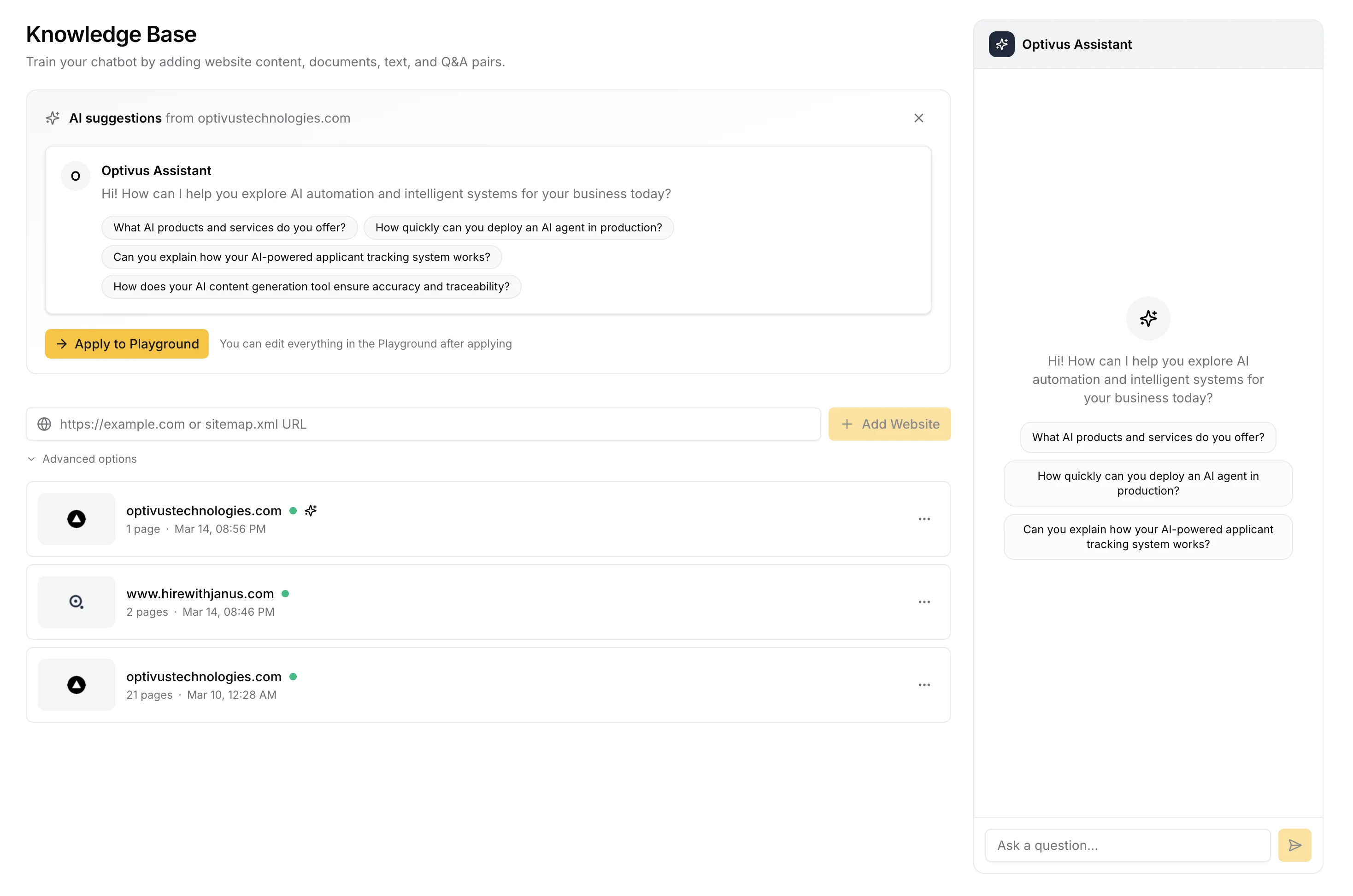
Tradeoff: Standard crawlers fetch HTML server-side. If your website is a React, Next.js, or Vue SPA, the crawler may fetch an empty <div id="root"></div>. The actual content is rendered client-side in the browser, and the crawler never sees it.
How to check: open your homepage URL in curl or "View Page Source" (not Inspect). If you see minimal HTML with no actual content text, your site is client-rendered and you'll need a different method.
Workaround for SPAs: Use your sitemap method (see below), export content manually, or use a headless browser crawler if the platform supports it.
2. Sitemap Import
Point the platform at your sitemap.xml. This gives the crawler an explicit list of URLs to process and generally yields more complete coverage than a blind crawl. It also avoids orphaned pages the crawler might miss.
Good sitemap-aware platforms will also extract your root domain and infer which paths to include, giving you a clean, targeted knowledge base without noise from blog tags, search results, or pagination.
3. File Upload (PDF, DOCX, CSV, XLSX)
If your knowledge lives in documents rather than web pages (product manuals, pricing sheets, internal guides), upload them directly. Most platforms accept PDF and DOCX at minimum. Better ones also support CSV and XLSX, which is useful for product catalogs and pricing tables with lots of structured data.
Pro tip: Named PDFs ("return-policy-2024.pdf") train better than unnamed exports because the filename becomes part of the context. Rename files descriptively before uploading.
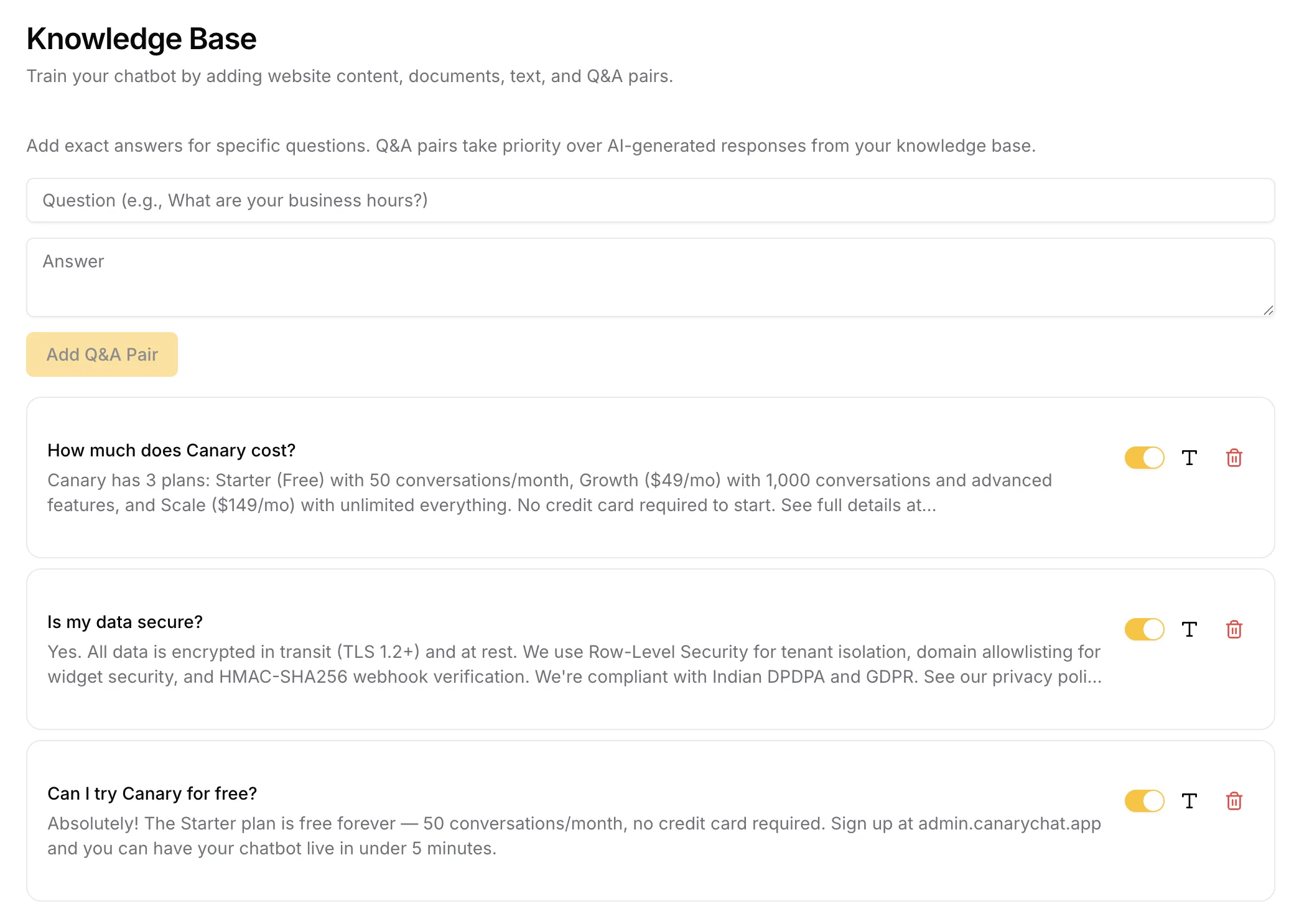
4. Manual Q&A Pairs
Explicitly define question-and-answer pairs in the admin interface. This is the highest-accuracy method: the bot answers these questions with near-100% reliability because there's no retrieval uncertainty. Use this for your top 10 most common support questions, questions where the website answer is ambiguous or scattered, and questions where you want a specific tone or response format.
Many platforms call these "Custom Answers," "Q&A Pairs," or "Intents." If yours has this feature, use it liberally.
5. API / CMS Integration
Enterprise-tier platforms let you sync content programmatically via webhook or SDK. When your CMS pushes a publish event, the chatbot's knowledge base updates automatically. This solves the content freshness problem (covered below) but requires developer setup.
The Content Freshness Problem Nobody Talks About
Here's the question most chatbot articles skip entirely: what happens when your website changes?
You launch a chatbot trained on your pricing page. Three months later, you update your pricing. Your chatbot is still quoting the old prices. A customer sees the old quote, your sales page shows the new price, and the confusion creates a support ticket. The exact problem the chatbot was supposed to prevent.
How different platforms handle content freshness:
| Method | How it updates | Frequency |
|---|---|---|
| Manual re-sync | You click "Re-train" after every content change | As often as you remember |
| Scheduled crawl | Platform re-crawls on a schedule | Daily / weekly (tier-dependent) |
| Auto-detect changes | Platform compares pages to previous versions | Near real-time (enterprise only) |
| Webhook sync | CMS notifies platform on publish | Instant |
For most small-to-mid businesses, scheduled daily re-crawl is the right balance. Set a calendar reminder to review your knowledge base any time you update pricing, policies, or core product details. On platforms that don't auto-sync, treat the knowledge base as a product that needs maintenance, because it is.
Platform Comparison: The Honest Version (2026 Pricing)
There are dozens of platforms that let you train a chatbot on your website. Here's a fair comparison of the major options, with verified 2026 pricing.
Disclosure: Canary is our product. We've included it in the table with a genuine limitation in the spirit of the "honest version" framing. Judge for yourself.
Feature & Pricing Comparison
Prices shown billed annually unless noted.
| Platform | Entry Plan | Mid Plan | Upper Plan | Standout | Limitation |
|---|---|---|---|---|---|
| Chatbase | $40/mo (Hobby) | $150/mo (Standard) | $500/mo (Pro) | Clean UI, GPT-4 | Credit-based; credits burn fast on high-traffic sites |
| SiteGPT | $39/mo (Starter, 1 bot) | $79/mo (Growth, 2 bots) | $259/mo (Scale, 3 bots) | Simple onboarding | Scheduled re-crawl on Scale plan only |
| Tidio | $24.17/mo (Starter) | $49.17/mo (Growth) | $749/mo (Plus) | Live chat + AI hybrid | Lyro AI conversations capped at 50/mo on Starter; entry plan volume is low |
| Intercom | $29/seat/mo | $85/seat/mo | $132/seat/mo | Best-in-class integrations | Fin AI: +$0.99 per resolved conversation |
| Canary | $127/mo (10 tenants) | — | — | Multi-tenant, 4KB widget, GPT-4.1-mini | No free plan; not the right fit for single-site solo users |
The Intercom pricing trap: The $29/seat/mo base sounds competitive until you factor in Fin AI. A 5-person support team on the Advanced plan ($85/seat) handling 2,000 AI-resolved conversations/month pays: $425 (seats) + $1,980 (Fin) = $2,405/month. That's before add-ons.
What to Look for Beyond Price
Pricing hides the real differences. Before committing to a platform, evaluate these:
Check knowledge base size limits first. Does the plan support all your content, or will you hit a ceiling? Similarly, conversation/message limits with per-month caps make costs unpredictable.
If you need different bots for different products or brands, confirm multi-bot support is included at your tier.
- Human handoff is non-negotiable. The bot needs to escalate to a live agent when it's uncertain.
- Source citations let users see which page the answer came from. This builds trust significantly.
- Scheduled re-crawl is critical for sites that update frequently, but it's often locked to higher tiers.
Finally, security and compliance matters more than most buyers realize. GDPR/data residency is relevant if you serve European customers. Healthcare and finance use cases should verify SOC 2 certification and whether a HIPAA BAA is available before committing.
Use Cases by Industry
The same RAG architecture works across industries. What changes is what you train it on and how you configure the fallback behavior.
E-commerce sites get the most immediate value: product recommendations, order status Q&A, return policy, sizing guides. Train on product catalog CSVs for structured data.
SaaS is high-value because support volume scales with users. Cover onboarding walkthroughs, feature questions, billing FAQ, and upgrade prompts.
- Healthcare handles appointment info, symptom triage (with strict disclaimers), and insurance questions. Confidence threshold should be set high. Always include a "consult a doctor" fallback.
- Real estate covers listing queries, neighborhood FAQs, and the application process. Train on listing data and process documentation.
Professional services firms can often automate 80% of pre-sale questions: intake qualification, service descriptions, pricing, scheduling.
The common thread: any business where prospects ask the same 20 questions over and over is a strong candidate.
Setting Up on Popular CMS Platforms
Most platforms give you a JavaScript snippet to paste into your site. Here's how that works on the most common platforms:
WordPress: Install a plugin like "Insert Headers and Footers" (free) and paste the script into the footer section. No code editing required.
Shopify: Go to Online Store → Themes → Edit Code → theme.liquid. Paste the snippet just before </body>. This injects the widget on every storefront page.
Webflow: Open your project settings → Custom Code → paste in the footer code section. Re-publish for it to take effect.
Wix: Use the Wix App Market to find a third-party widget installer, or enable Velo Dev Mode to paste code directly.
Next.js / React SPA: Most platforms offer an NPM package or React component as an alternative to the raw script tag, since URL crawlers may not render client-side content.
Customizing Your Chatbot's Tone and Personality
Training a chatbot on your website content covers what it knows. Your system prompt determines how it communicates, and this is where most deployments underinvest.
A few practical settings to configure:
Give it a name and persona. "You are Alex, the support bot for Acme Co." Simple, but it avoids the uncanny valley of a nameless "AI Assistant."
Set the tone explicitly. "Reply in a friendly, casual tone" vs. "Reply in a professional, concise tone." Match your brand voice.
- Scope guardrails prevent the bot from wandering into general trivia. "Only answer questions about Acme Co. products and services. Decline off-topic requests politely."
- Escalation instructions are your safety net. "If you are not confident in the answer, say so and offer to connect the user with a human agent at support@yourco.com."
For language, most platforms support multilingual responses out of the box. Specify "Reply in the same language the user writes in" to handle non-English queries without a separate setup.
The more specific your system prompt, the more consistent the bot's behavior across edge cases.
Deploying the Widget: Embed Code and Placement
Once trained, deploying a chatbot widget to your website is typically a single line of HTML:
<script src="https://widget.yourplatform.com/loader.js" data-bot-id="YOUR_BOT_ID"></script>Paste this before the closing </body> tag on every page. For single-page apps, most platforms offer React components or NPM packages as an alternative.
Placement best practices:
The bottom-right corner is the default and the convention. Users look there. If your chatbot is specialized, trigger it on specific pages (support, pricing) rather than site-wide.
A proactive trigger message after 15-30 seconds on high-intent pages (pricing, contact, checkout) can meaningfully increase engagement. Keep it contextual: "Questions about pricing? I can help."
Test the widget on mobile specifically. A chatbot that covers the entire screen on mobile is worse than no chatbot at all.
A good widget should load in under 200ms and add under 5KB to your page weight. Bundle size varies significantly across platforms, so check before you commit.
Test Before You Go Live
Don't publish the widget until you've run a deliberate QA pass. Thirty minutes here prevents embarrassing failures in production.
Test these specifically:
- Your top 10 questions. The ones you know users ask. The bot should answer all of them correctly.
- Edge cases outside the knowledge base. Ask questions you know aren't covered. Verify the bot declines gracefully rather than hallucinating.
- Ambiguous questions. "What's your return policy if I bought it through Amazon?" should trigger a fallback, not a fabricated answer.
- Escalation path. Trigger a human handoff and confirm it works end-to-end.
- Mobile and multiple browsers. The widget should render correctly on iOS Safari, Chrome, and Firefox.
Log every failed response during testing and add Q&A pairs for the gaps before launch.
What Happens When the Bot Doesn't Know the Answer
A chatbot that confidently makes things up is worse than no chatbot. How your bot behaves at the edges of its knowledge is one of the most important things to configure.
The three options:
- Refuse gracefully. "I don't have that information, but you can reach our team at support@yourcompany.com." Clean, honest, no hallucination risk.
- Escalate to human. Trigger a live chat handoff or create a support ticket automatically. Best for high-stakes questions.
- Answer with low confidence. The bot tries anyway, often hallucinating. Avoid this unless you've reviewed the fallback answers carefully.
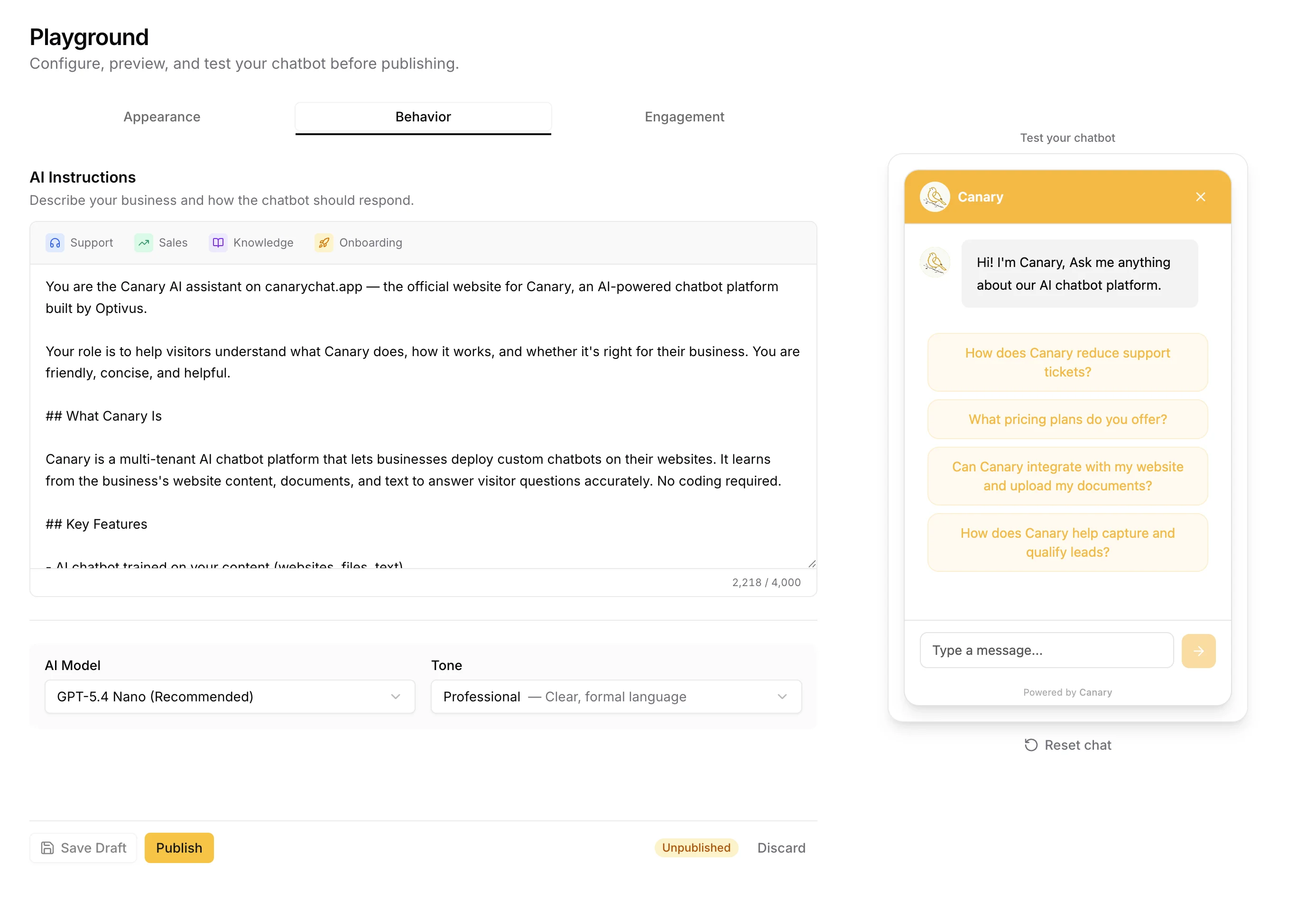
Platforms that offer confidence thresholds let you tune this. A threshold of 0.4 (on a 0-1 scale) means the bot will decline to answer unless it's at least 40% confident the retrieved content matches the question. Higher thresholds = more refusals, fewer hallucinations. For industries like healthcare or finance, err high.
Source citations are the other trust-builder. When the bot shows "Based on your Return Policy page", users can verify the answer themselves. This measurably reduces support escalations because users trust cited answers more than uncited ones.
See how Canary handles confidence thresholds and source citations →
How to Measure Whether It's Working
Five metrics tell you whether your chatbot is actually performing:
| Metric | What it measures | Healthy benchmark |
|---|---|---|
| Resolution rate | % of conversations fully handled by the bot | 60–80% |
| Handoff rate | % escalated to a human | 10–30% |
| CSAT score | Thumbs up/down from users post-chat | 70%+ positive |
| Fallback rate | % of responses where bot had no answer | <15% (high = gaps in KB) |
| Lead capture rate | % of chats that captured contact info | 5–20% (varies by use case) |
A high fallback rate (>20%) tells you your knowledge base has coverage gaps. Pull the fallback questions, add Q&A pairs for the top 10, and re-evaluate weekly until it drops.
Resolution rate above 80% is excellent. Below 40% usually means either the knowledge base needs more coverage or the confidence threshold is too aggressive.
FAQ
How long does it take to train a chatbot on my website?
With a URL crawl or sitemap import, initial training takes 5-30 minutes depending on site size. You can have a working chatbot deployed the same afternoon you start.
Is training a chatbot the same as fine-tuning an AI model?
No. What most platforms do is RAG (Retrieval-Augmented Generation): your content is stored in a searchable knowledge base, and the AI reads it at query time. The underlying model doesn't change. Fine-tuning (actually retraining the model) is expensive, slow, and unnecessary for most business use cases.
Does the chatbot update automatically when my website changes?
Only if the platform supports scheduled or webhook-based re-crawling. Most entry-tier plans require manual re-sync. Check this before committing. It's an operational cost that catches people off guard.
How accurate is a chatbot trained on my website content?
Accuracy depends on knowledge base quality, not the underlying AI model. With well-structured content and explicit Q&A pairs covering your most common questions, you can handle the majority of real user queries reliably. The key levers are content coverage, content clarity, and your confidence threshold setting.
Can I use ChatGPT as a chatbot on my website?
Not directly. You can't "embed ChatGPT" on your site. What you can do is build a chatbot using OpenAI's API with a RAG layer on top of your website content. That's exactly what platforms like Chatbase, SiteGPT, and Canary do behind the scenes. Building your own requires developer work but gives you full control over prompts, data, and costs.
How much does it actually cost at scale?
It depends heavily on platform and pricing model. At 1,000 AI-resolved conversations per month:
- Chatbase Standard: $150/mo flat
- SiteGPT Growth: $79/mo (message limits may apply)
- Intercom + Fin AI: a 3-seat team on Essential pays $87 (seats) + $990 (Fin) = $1,077/mo
- Canary: $127/mo for up to 10 tenant sites
Per-resolution pricing sounds cheap until you're at volume. Flat-rate pricing is almost always better for predictable operations.
Putting It Together
Training an AI chatbot on your website content is one of the highest-ROI investments you can make for customer experience. Companies resolving 60-80% of support queries automatically aren't running futuristic AI experiments. They're deploying RAG-based chatbots trained on their own documentation, at a fraction of what the same volume of human support costs.
The steps are concrete:
- Audit your content quality before ingesting it
- Start with a URL crawl or sitemap import for coverage, then add Q&A pairs for your top questions
- Configure a confidence threshold and a graceful fallback
- Set your chatbot's tone and persona in the system prompt
- Enable source citations to build user trust
- Test edge cases before launch
- Monitor fallback rate weekly and fill knowledge gaps as they surface
The chatbot you launch on day one won't be as good as the one you have at month three. That's expected. The system gets better as you fill gaps, and each support question your chatbot handles is one less ticket in your queue.
Ready to try it? Canary lets you train a chatbot on your website in minutes, with a 4KB widget, GPT-4.1-mini, configurable confidence thresholds, and source citations included on all plans. Built for founders and agencies who want results without the operational overhead.